
Epic Charging introduces a Waitlist feature for Locations. This feature allows drivers to join a queue when all chargers are occupied and receive an email or push notification when a charger becomes available. Once notified, drivers have a short window to plug in and start charging before the opportunity passes to the next person in line. Waitlist is available via QR code or mobile app.
Enabling Waitlist functionality via the Dashboard
1. Start by navigating to the ‘Location’ tab within your Epic account, Select the Location you want to enable the Waitlist functionality for. Ensure Payments are enabled under ‘Chargers’ tab - the Waitlist requires Payments to be enabled.
2. On the ‘Pricing’ tab locate the “Waitlist” checkbox in the top right corner. By default the checkbox is not checked.
1. Start by navigating to the ‘Location’ tab within your Epic account, Select the Location you want to enable the Waitlist functionality for. Ensure Payments are enabled under ‘Chargers’ tab - the Waitlist requires Payments to be enabled.
2. On the ‘Pricing’ tab locate the “Waitlist” checkbox in the top right corner. By default the checkbox is not checked.
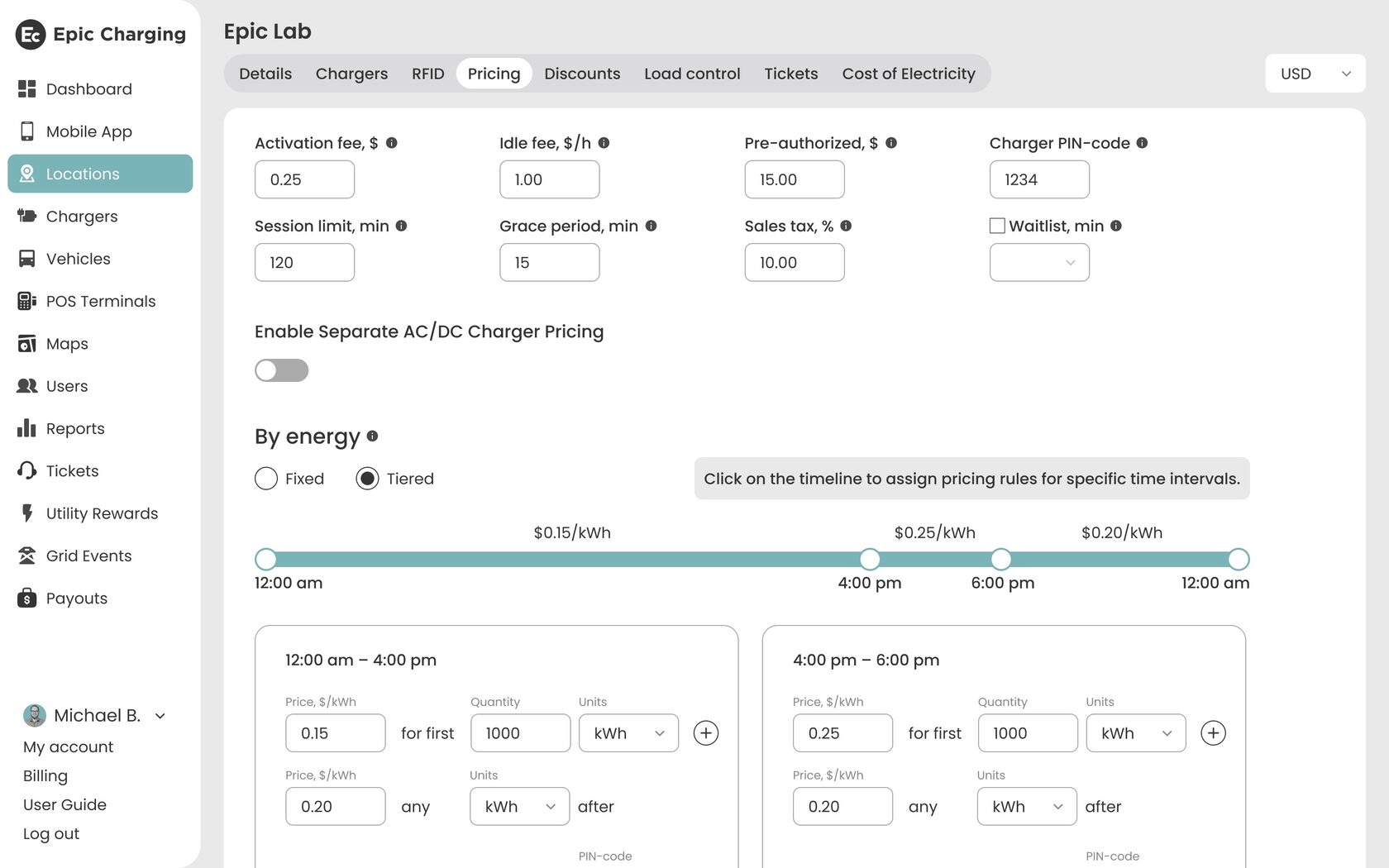
3. Check the “Waitlist” box to enable the feature. When checked, the “Waitlist” dropdown becomes active. Use it to select the plug-in window from one of four predefined options: 5, 10, 15, or 20 minutes. The default preselected value is 10 minutes. Click the “Save changes” button at the bottom of the page to apply the Waitlist settings for the Location.
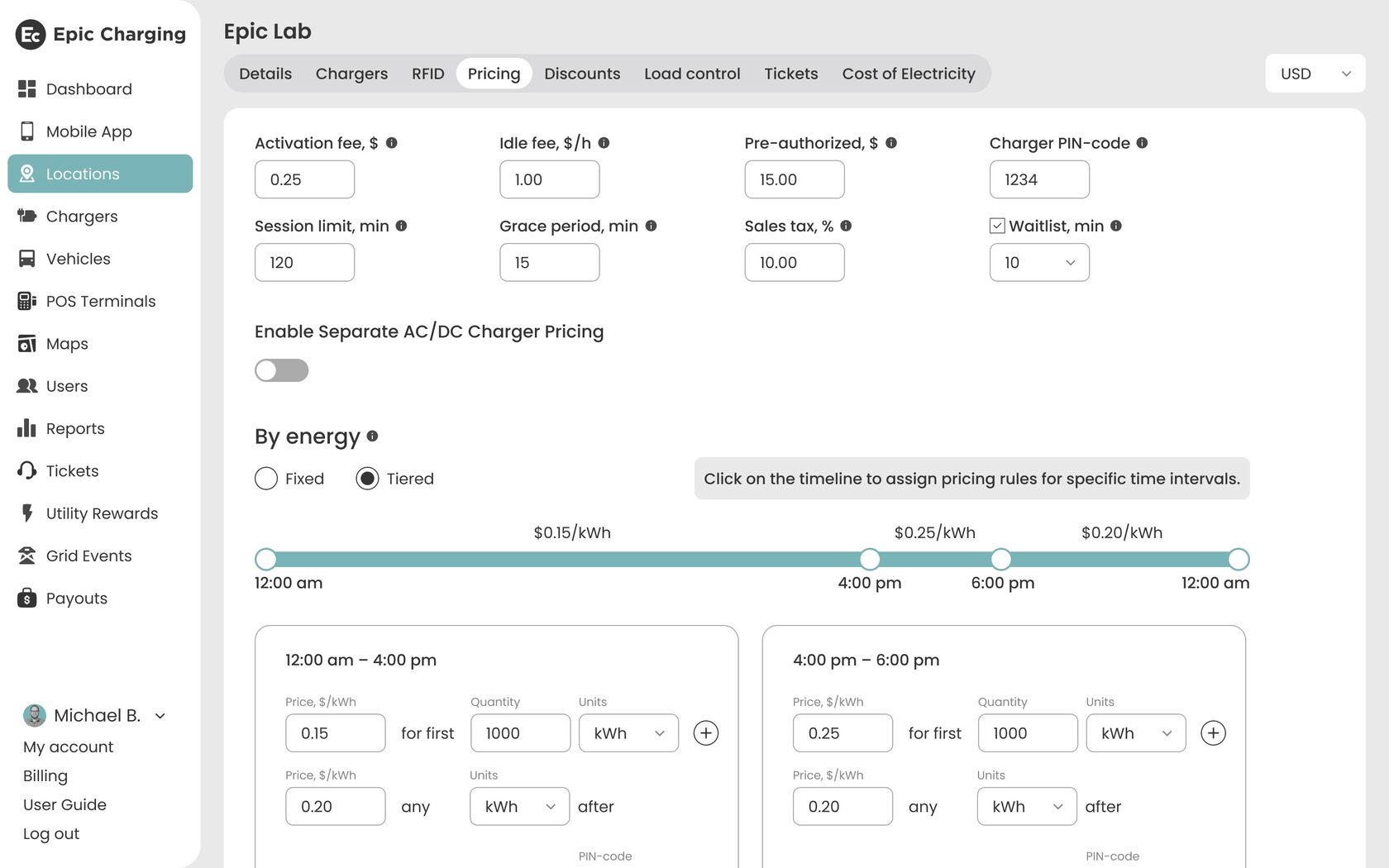
4. Please note that each Location’s Waitlist is independent and must be configured individually. The Waitlist at any Location accepts up to 5 drivers. If the Waitlist is full, drivers will be informed that they can’t join.
Using Waitlist via QR code
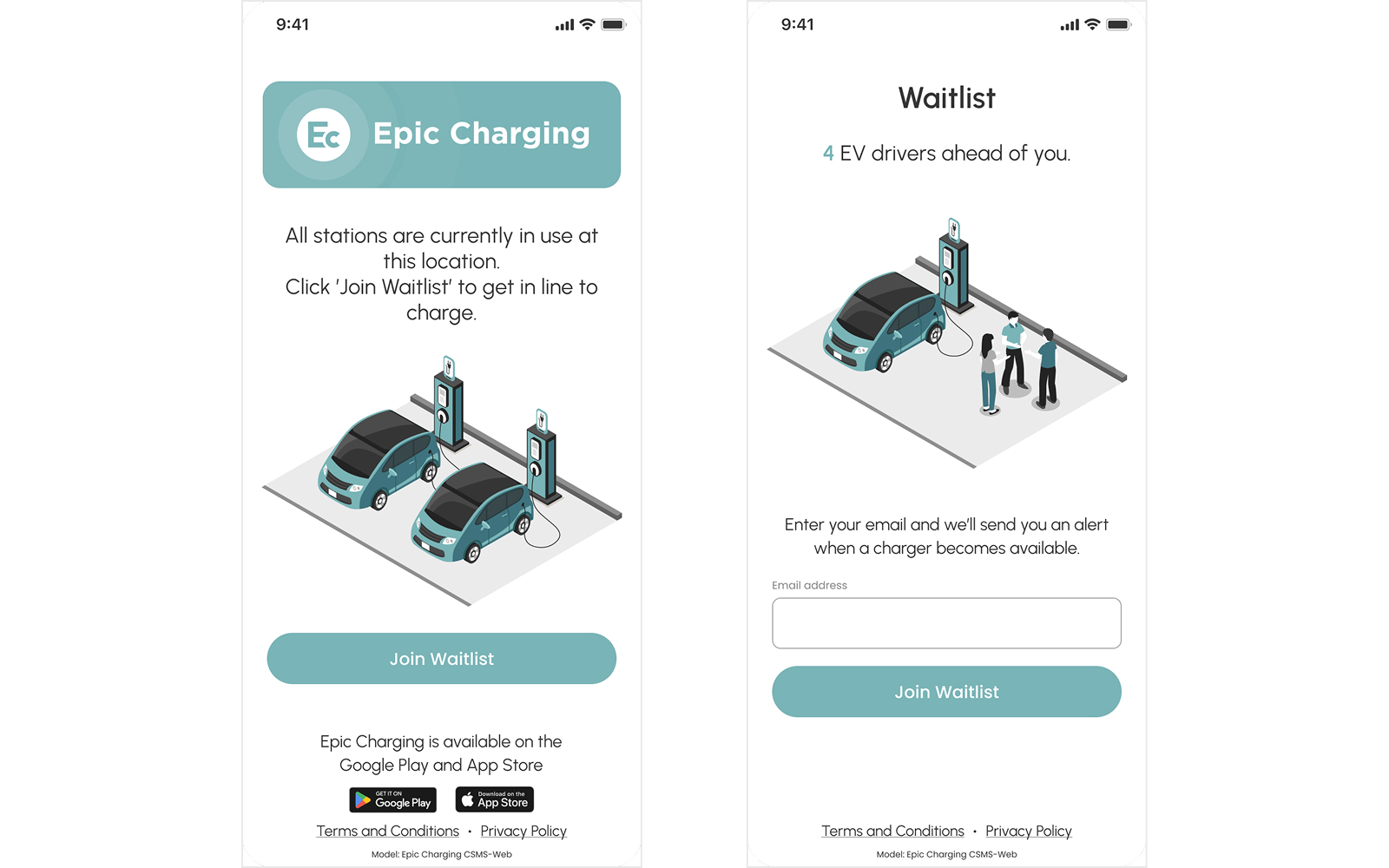
1. When all chargers at a Location are occupied, scan a charger’s QR code and you will be redirected to a page that offers to Join Waitlist. Enter your email address to join. Drivers are offered spots in line on a first-come, first-served basis.
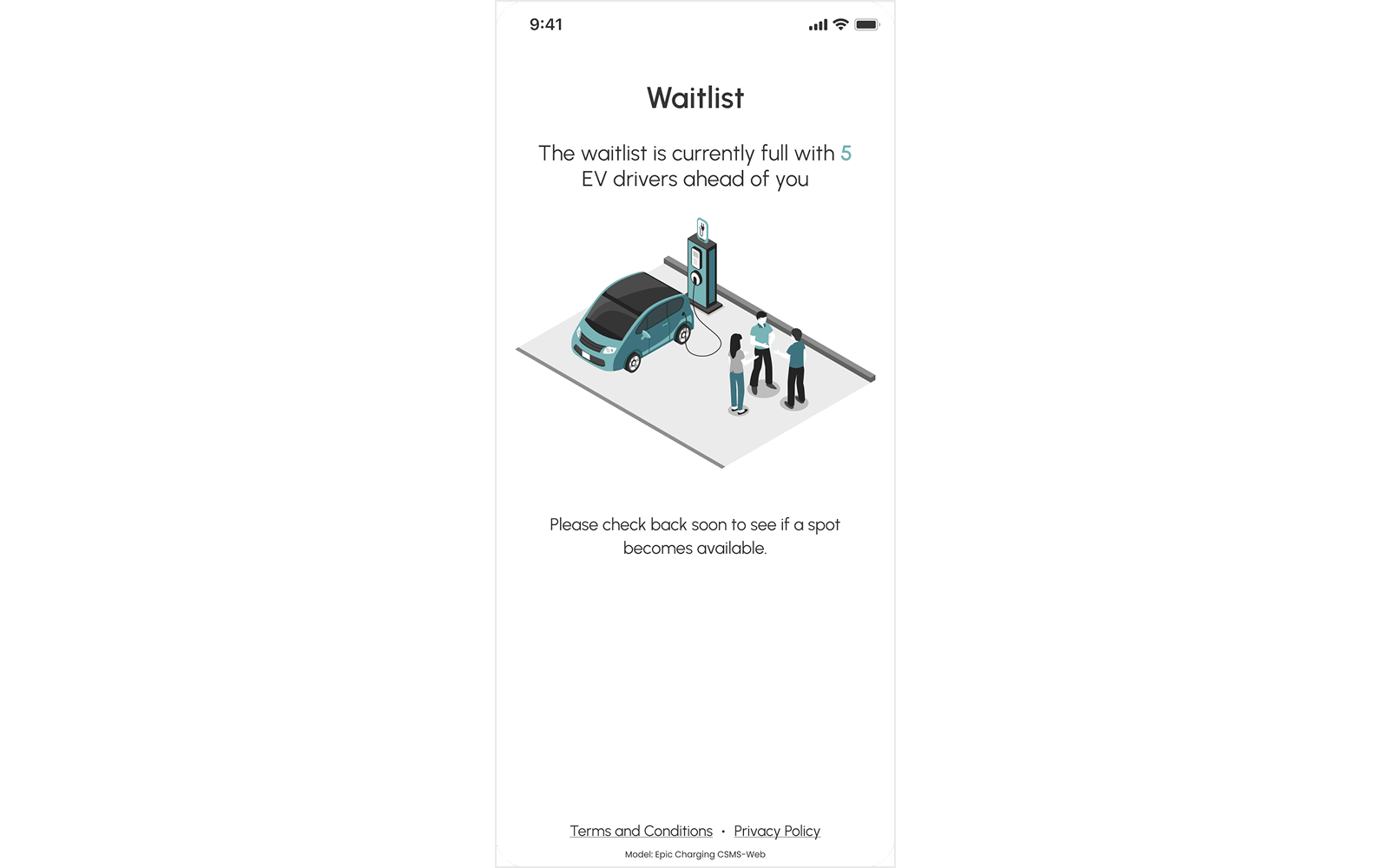
2. If the Waitlist is full, you will be informed that you can’t join.
3. After joining, you will see a confirmation with your number in line and receive an email.
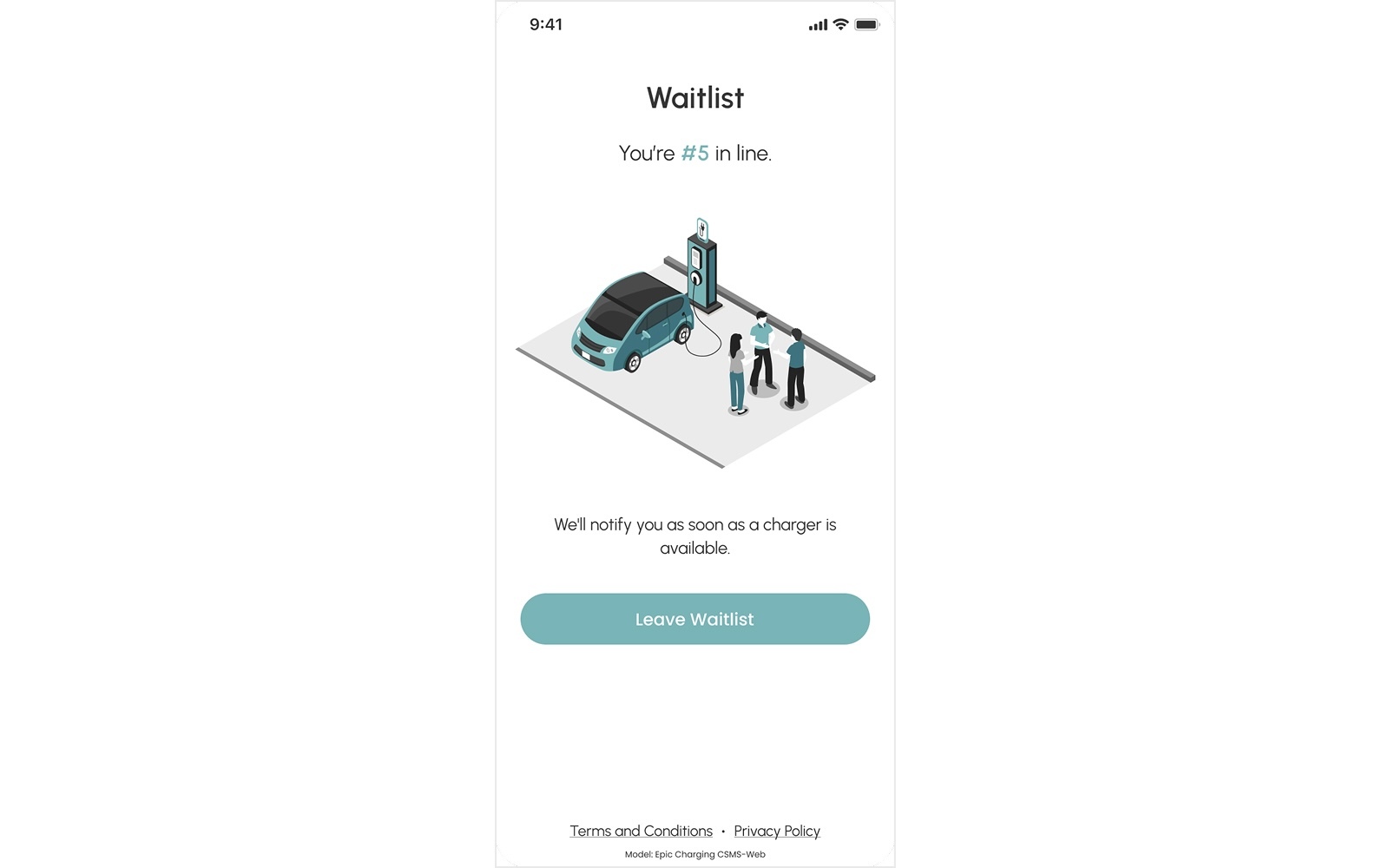
4. When a charger becomes available and it’s your turn in line, you will receive an email. To claim the spot you must plug in at the specified charger, enter the email used to join the Waitlist, and the charging session will be automatically authorized. If you don’t claim the spot within the time limit, the opportunity to charge passes to the next person in line.
5. You may leave the Waitlist at any time by clicking the “Leave Waitlist” button in your smartphone browser or via the link in the confirmation email.
Using Waitlist via mobile app
1. When all chargers at a Location are occupied and the Waitlist functionality is enabled, the app will display a “Join Waitlist” button. Tap on the button to join. Drivers are offered spots in line on a first-come, first-served basis.
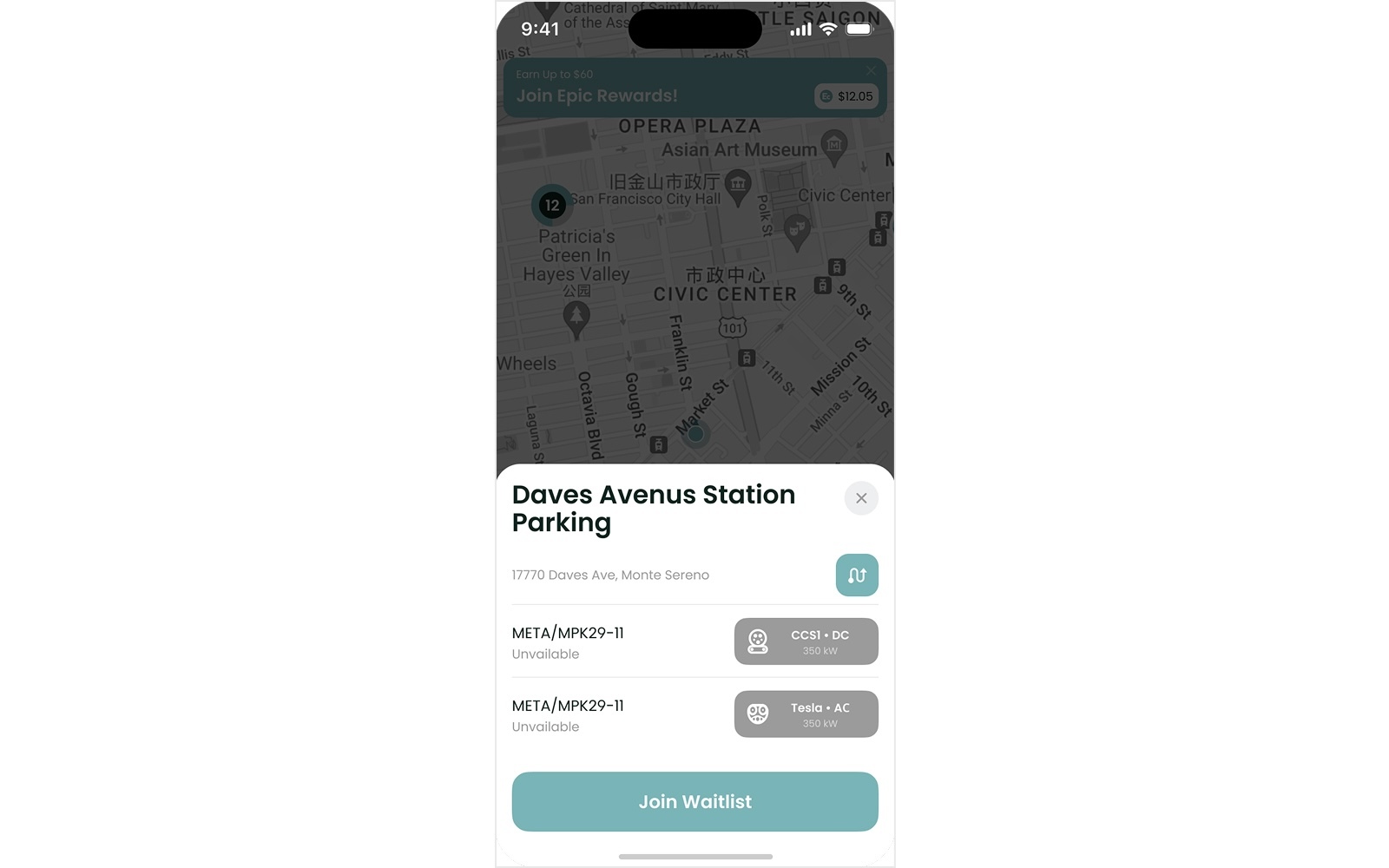
2. If the Waitlist is full, you will be informed that you can’t join.
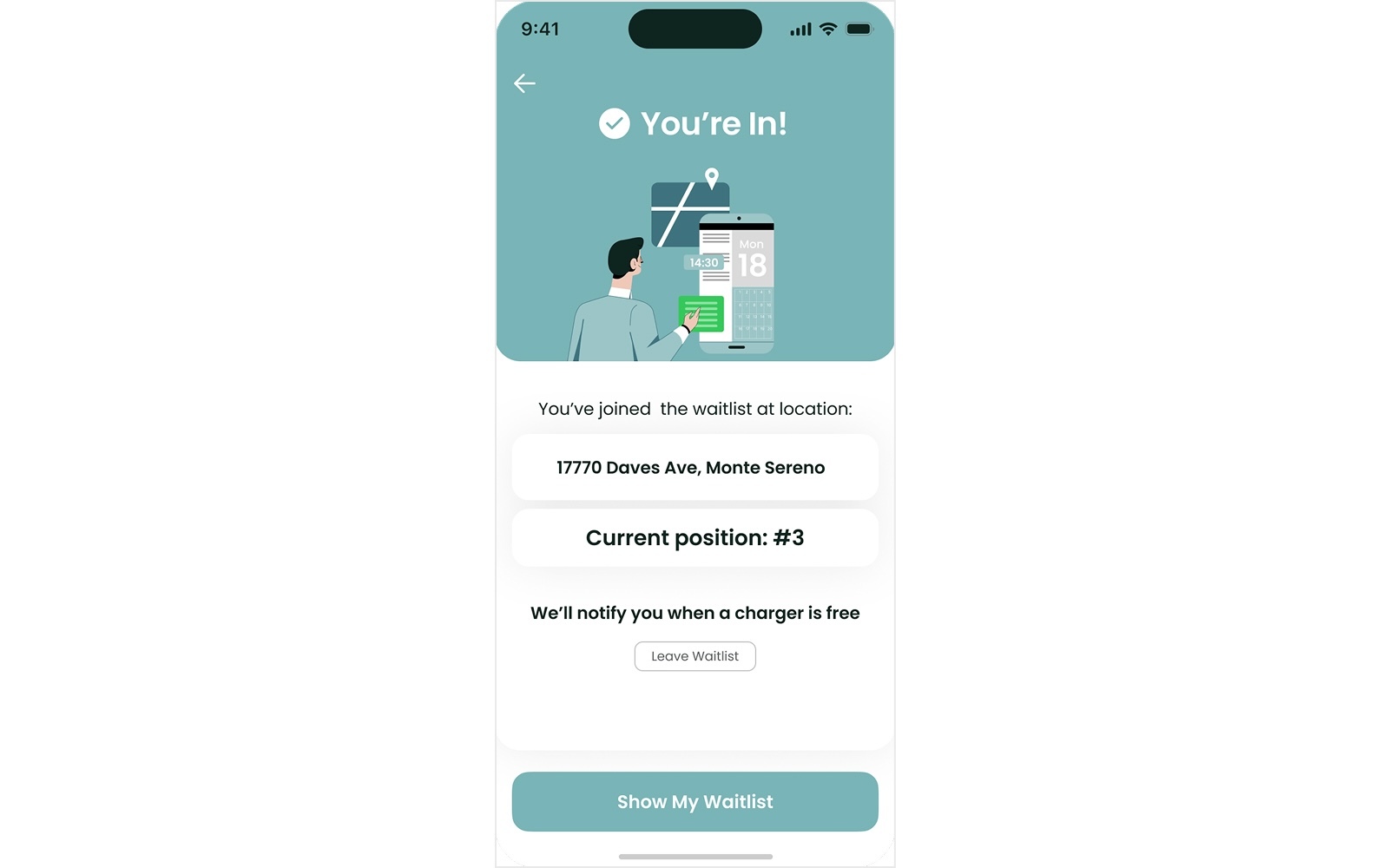
3. After joining, the mobile app will show a confirmation with your number in line, and you will also receive an email.
4. When a charger becomes available and it’s your turn in line, you will receive a push notification. To claim the spot, plug in at the specified charger, open the mobile app and tap “Start charging”. The System will authorize the session for you. If you don’t claim the spot within the time limit, the opportunity to charge passes to the next person in line.
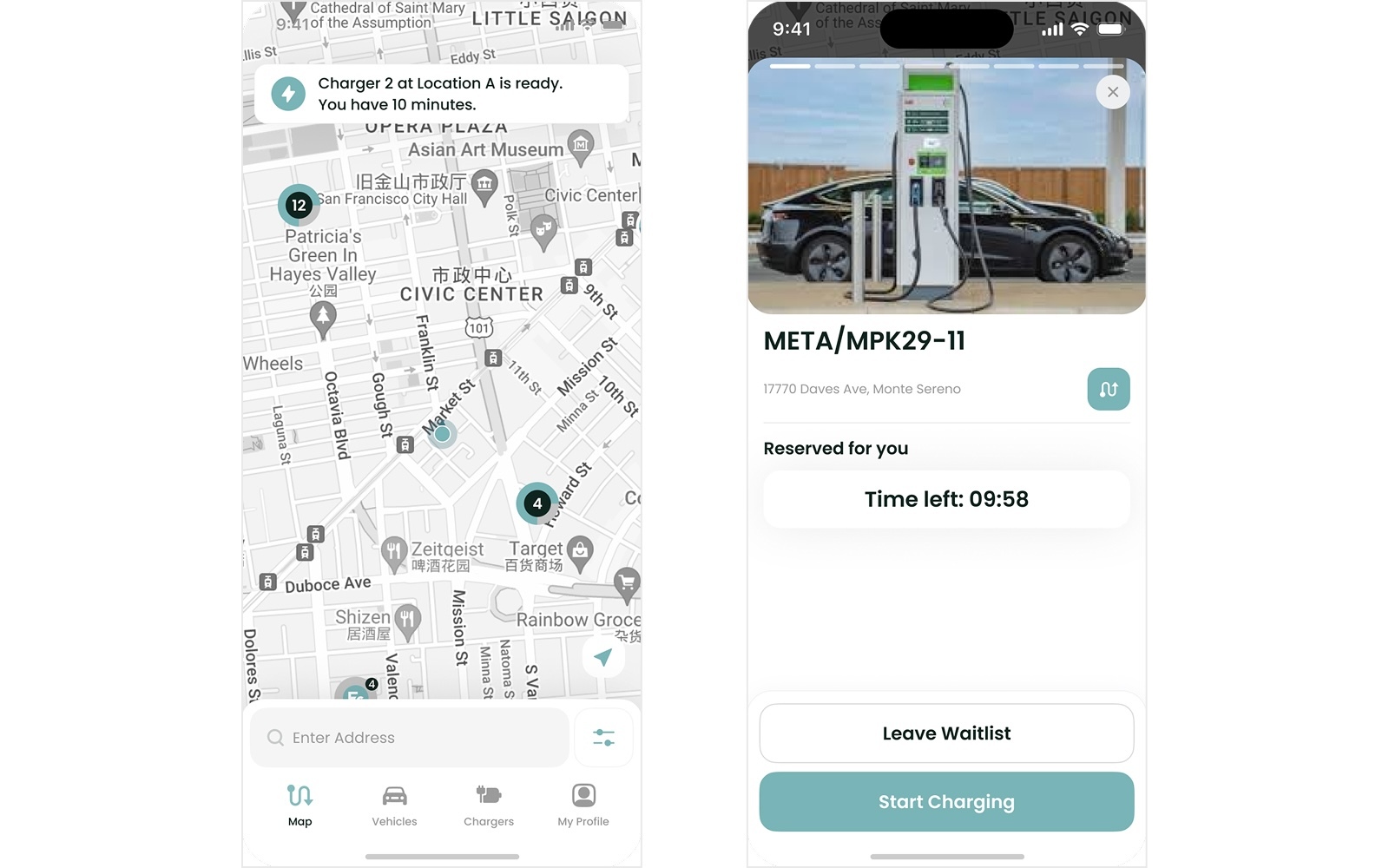
5. You may leave the Waitlist at any time by clicking the “Leave Waitlist” button in the app.