
The Time of Use (TOU) feature allows Epic Charging app users to set custom charging schedules for their home chargers. By creating a TOU schedule, you can optimize charging to occur during preferred hours - for example, when electricity rates are lower.
1. Download the Epic Charging app, available on both Apple and Google Stores.
2. Log in using your mobile app credentials or create an account.
3. Go to the 'My Chargers' tab and select your home charger from the list.
4. On the charger screen, tap "Edit" next to the 'Schedule' section.
2. Log in using your mobile app credentials or create an account.
3. Go to the 'My Chargers' tab and select your home charger from the list.
4. On the charger screen, tap "Edit" next to the 'Schedule' section.
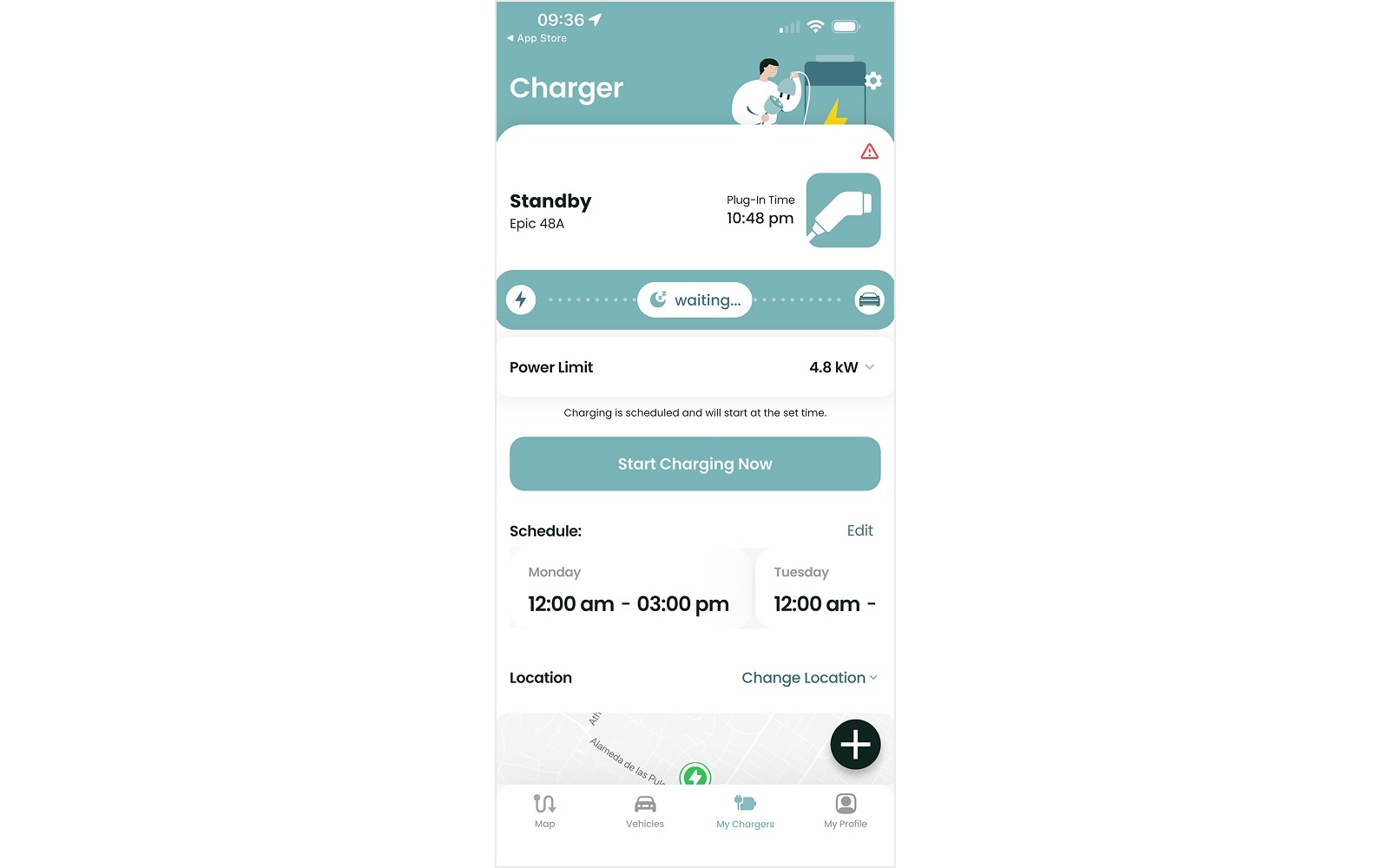
5. A popup window with the scheduling view will open. Select the day of the week you would like to set charging times for. Set your desired Start and End times using the time pickers. You can also switch between AM and PM and adjust the Time Zone.
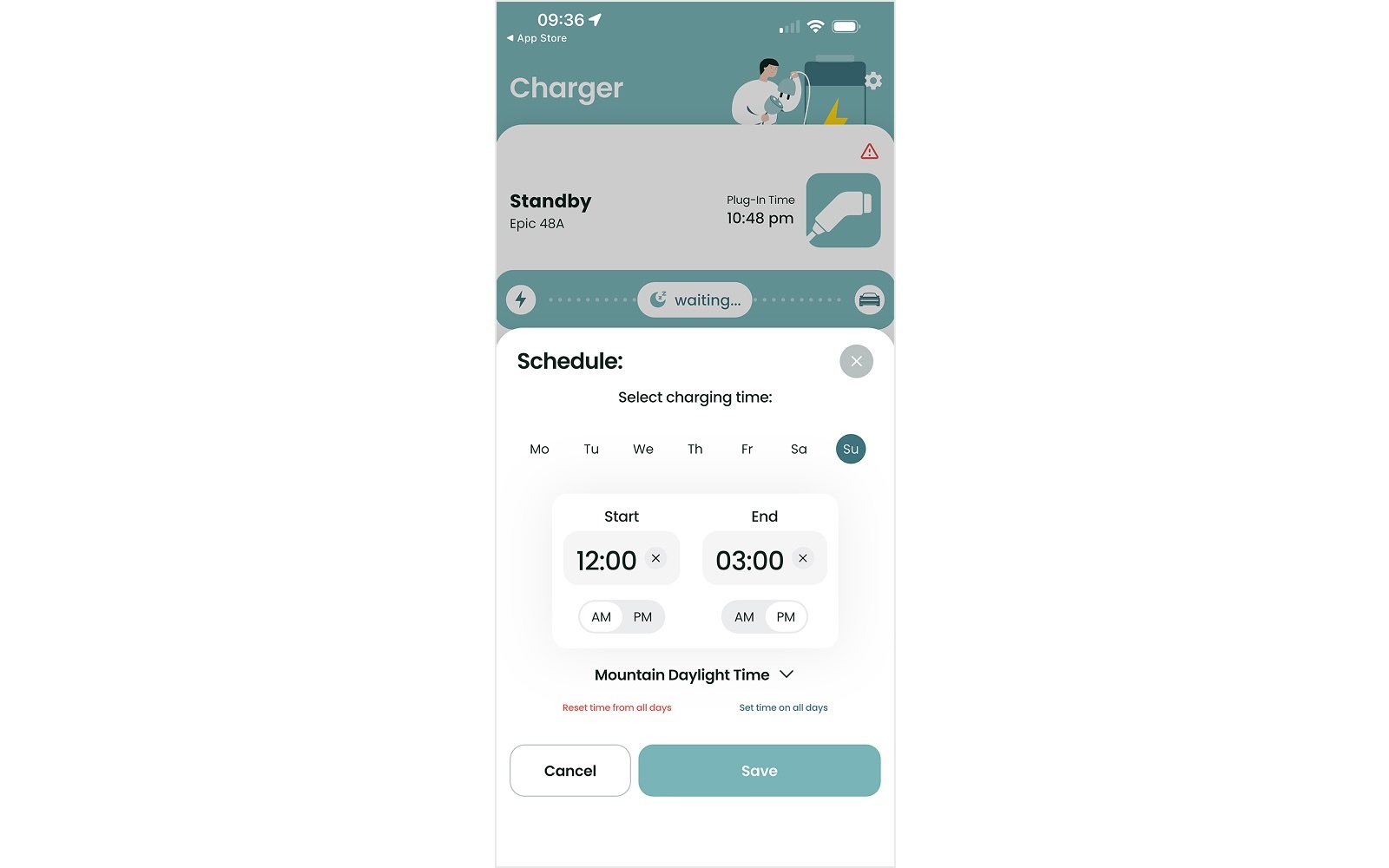
6. Repeat the same for each day of the week as needed. If you would like to apply the same schedule to all days, tap "Set time on all days."
7. Confirm your selection and tap the "Save" button. The app will display your selected schedule under the 'Schedule' section. Charging will automatically start and stop according to your set times.
8. If you want to clear your TOU schedule, tap the "Edit" button, select "Reset time from all days" in the scheduling view and tap the "Save" button.
By following these steps, you can easily set the TOU schedule to ensure your charger operates during the most cost-effective hours.