
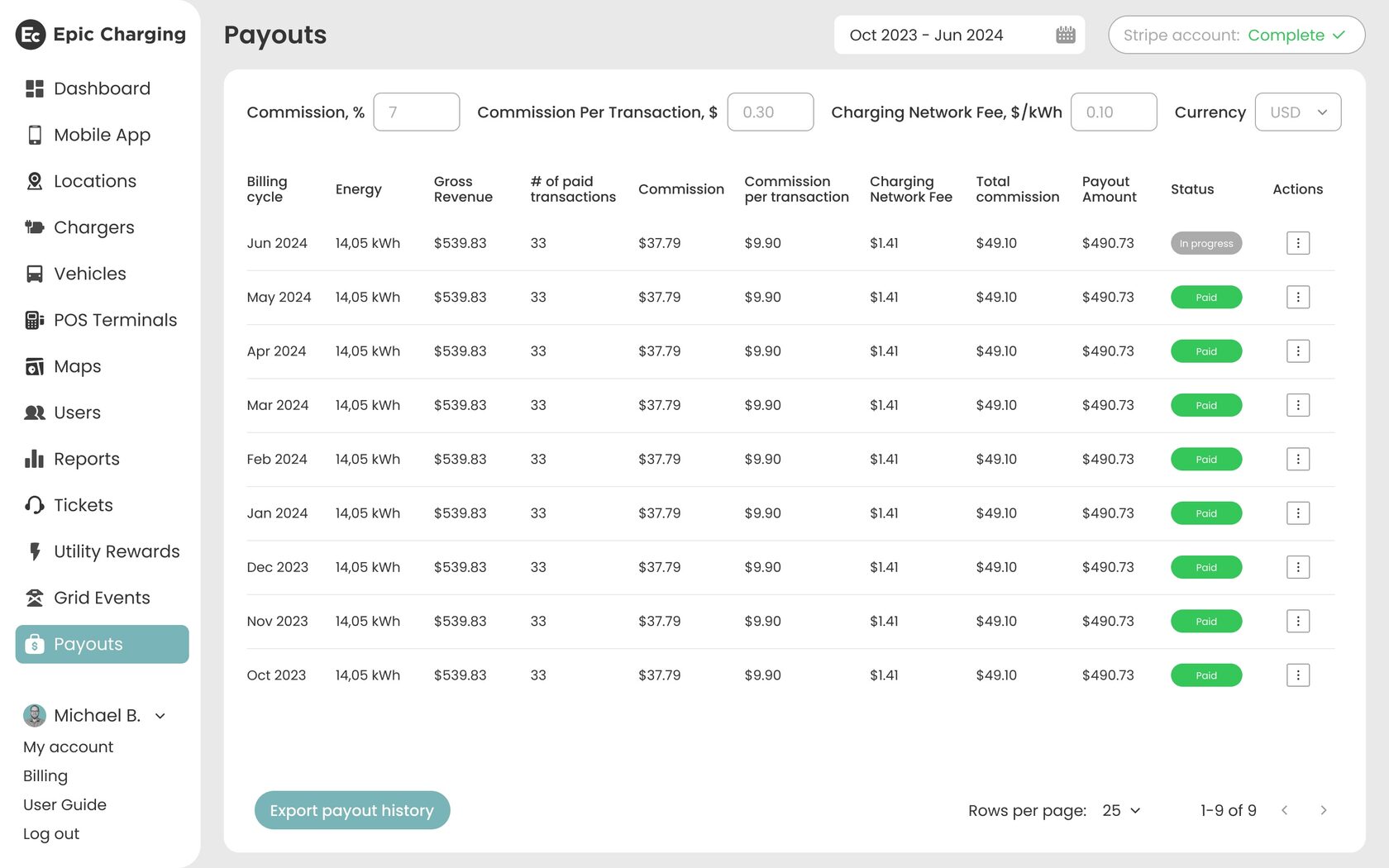
Epic Charging enables the ‘Payouts’ page, allowing users to view payments collected from public EV chargers. This feature improves transparency and helps to understand how commissions are calculated and deducted before payout.
1. Start by navigating to the 'Payouts' tab within your Epic account, where you will find a list of monthly payouts made by Epic for the use of your public chargers. Note that this tab is only available for ‘Admin’ and ‘Partner’ roles of web app users.
1. Start by navigating to the 'Payouts' tab within your Epic account, where you will find a list of monthly payouts made by Epic for the use of your public chargers. Note that this tab is only available for ‘Admin’ and ‘Partner’ roles of web app users.

2. To receive payouts, you must connect a Stripe account. Locate and click the “Add Payout Method” button in the top right corner of the page. A secure link will be generated, redirecting you to Stripe. Complete all required fields in Stripe to create your account. After successful setup you will be redirected back to the ‘Payouts’ page, and the “Add Payout Method” button will then be replaced with one showing your current Stripe account status.
3. If something goes wrong during the Stripe account creation process, you will be redirected back to the ‘Payouts’ page. To retry, simply click the “Add Payout Method” button again.
4. Use the calendar interface to filter monthly payouts by selecting a start and end month and year.
5. On the ‘Payouts’ page you can also view Commission Details. These values help you understand how commissions are calculated and deducted before payout, and include the following:
- Commission, % - Epic’s commission as a percentage of each transaction.
- Commission Per Transaction, $ - Epic’s flat fee in USD per paid transaction.
- Charging Network Fee, $/kWh - fee in USD per kilowatt-hour delivered during charging sessions.
6. The ‘Payouts’ table contains the following parameters about each payout:
- Billing Cycle - A period from 1st date to last date of the month.
- Energy - Total energy delivered during all charging sessions paid for in the corresponding billing cycle.
- Gross Revenue - Total gross revenue collected for all charging sessions paid for in the corresponding billing cycle.
- # of paid transactions - Total number of charging sessions paid for in the corresponding billing cycle.
- Commission - Epic commission calculated based on the percentage of Gross Revenue collected in the corresponding billing cycle.
- Commission per transaction - Epic commission per all paid transactions calculated based on number of charging sessions paid for in the corresponding billing cycle.
- Charging Network Fee - Network fee calculated based on the amount of kWh delivered during the charging sessions paid for in the corresponding billing cycle.
- Total commission = Commission + Commission per transaction + Charging Network Fee.
- Payout Amount - Amount paid by Epic to the customer.
- Status - Tag showing the Payout status. Options: In progress (the funds are not transferred yet), Processing (the funds transferred to the Customer's Stripe account, and transfer to the Customer’s External account is not finished yet), Paid (the funds are transferred to the Customer’s External account).
7. To download a detailed report for any billing cycle, click the “Download report” button in the ‘Actions’ column.